How do I search for a member profile?
Short Answer
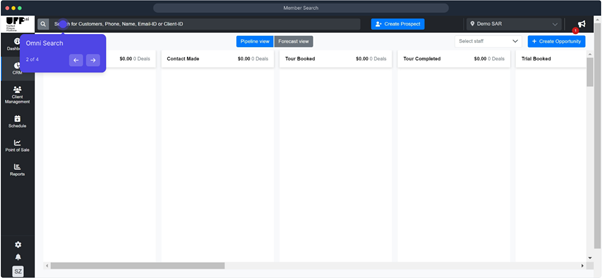
You can quickly find any member, prospect, or other profile in FitnessForce using the OmniSearch bar at the top left of your screen. Just type in the name, phone number, email address, or client id, and select the correct profile from the results.
Detailed Steps
Locate the OmniSearch bar at the top left of the screen.
Type in any known detail such as:
Member’s name
Mobile number
Email ID
Client ID
A list of matching profiles will appear below the search bar.
Click on the correct profile to open it and start working on that member’s details.
FAQ
Q: Can I search only for members, or also for prospects?
You can search for any profile—members, prospects, trial or ex-member—as long as it has been created in the software.
Q: Do I need the full name or number to search?
No, even partial details (like the first few letters of a name or part of a phone number) will bring up results.
Q: What if multiple profiles have similar names?
The list will show all matching results. Simply check the contact details shown and click the correct profile.
Q: Can I search using membership ID or invoice number?
Currently, OmniSearch works best with name, phone number, or email ID. For membership ID or invoice-specific searches, use the relevant module filters
Was this helpful?
Still need help? Ask the team