How do I add a “Referred By” to a member profile?
Short Answer
You can add a Referred By name when creating a new prospect or by editing an existing member’s profile. This helps you track referrals and reward members who bring in new clients.
Detailed Steps
If you’re creating a new profile, click Create Prospect.
Fill in the member’s details.
In the Referred By field, enter the name of the person who referred them.
To add a referral for an existing member:
o Search for the member in the OmniSearch bar.
o Open the profile and go to the Actions menu.
o Click Edit Profile.
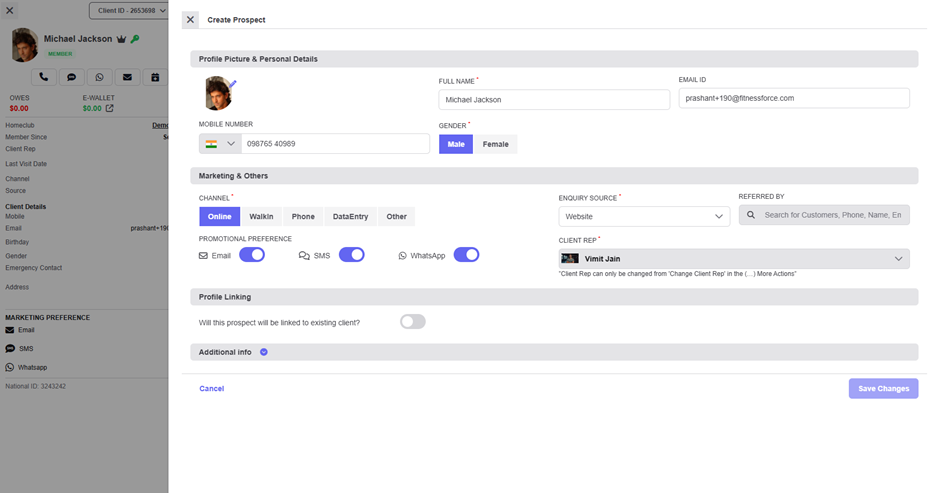
o Enter the name in the Referred By field.
o Click Save to update the profile.
FAQ
Q: Can I add “Referred By” later if I missed it during profile creation?
Yes, just open the profile, go to Edit Profile → Additional Details, and add it anytime.
Q: Can the “Referred By” field accept both members and non-members?
Yes, you can type in any name. If it’s a member, non-member, ex member or trial it helps you track and reward them easily.
Q: Can I change the “Referred By” later?
Yes, you can edit or update the field from the Additional Details tab whenever needed.
Was this helpful?
Still need help? Ask the team