How do I edit a member profile in FitnessForce?
Short Answer
You can edit a member’s profile by searching for them in OmniSearch, opening their profile, and clicking Edit Profile. From there, you can update personal details, add documents, assign key fobs, create opportunities or tasks, and more.
Detailed Steps
Use the OmniSearch bar to search for the client by name, phone number, or email.
Open the profile and click Edit Profile.
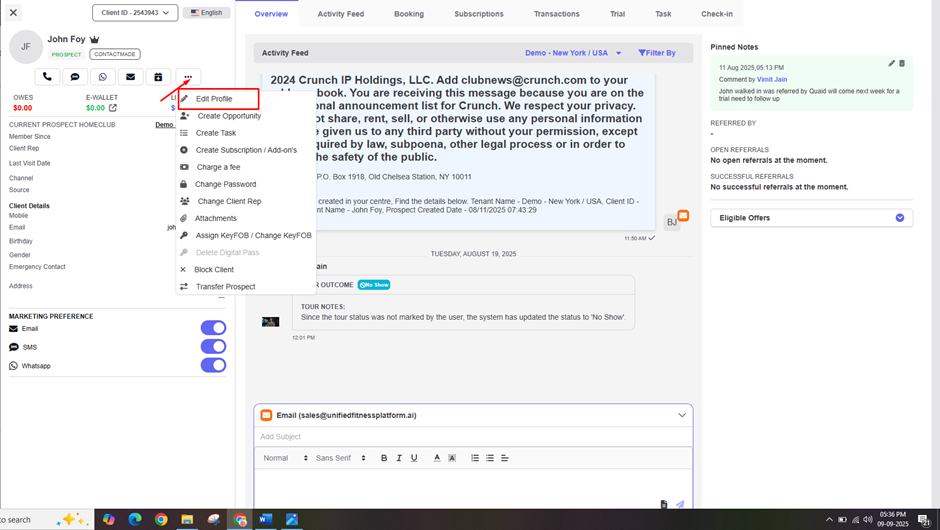
On the Edit Profile Page, update any personal information such as:
National ID
Phone Number
Email Id
Date of Birth
Emergency Contact Name & Number
Tax Number
Use the tabs and options available to make other updates:
Change Password → Set a new mobile app password for the member.
Change Client Rep → Reassign the member to a different sales representative.
Attachments → Upload files under the Attachments Tab.
Assign KeyFOB / Change KeyFOB → Link or replace a member’s access key.
Block Client → Restrict a member’s access if needed.
After making changes, be sure to save or confirm updates to keep the profile current.
FAQ
Q: Can I edit both personal and membership details from the profile?
Yes, you can update personal details, add subscriptions, charge fees, and manage access all from the profile page.
Q: Do changes update immediately?
Yes, once saved, updates reflect instantly across the system.
Q: Can I upload important documents to a profile?
Yes, use the Attachments Tab to store files like ID proofs, agreements, or medical certificates.
Q: What happens if I block a client?
Blocking a client will restrict their access and prevent them from using the gym until the block is removed.
Was this helpful?
Still need help? Ask the team